Check out our guide to quick and seamless integration.
IPHONE
1. Sign in to Outlook at https://outlook.live.com/owa/ using your email address.
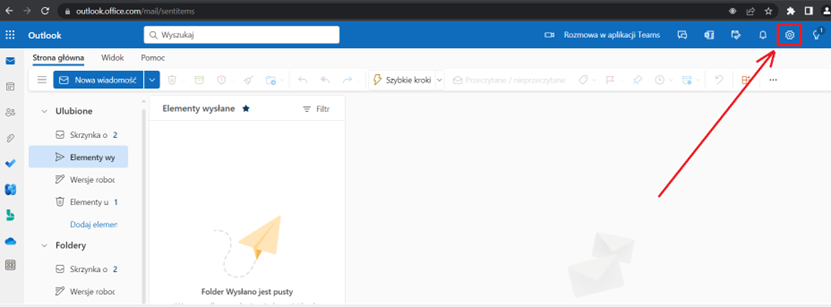
2. Open Settings.
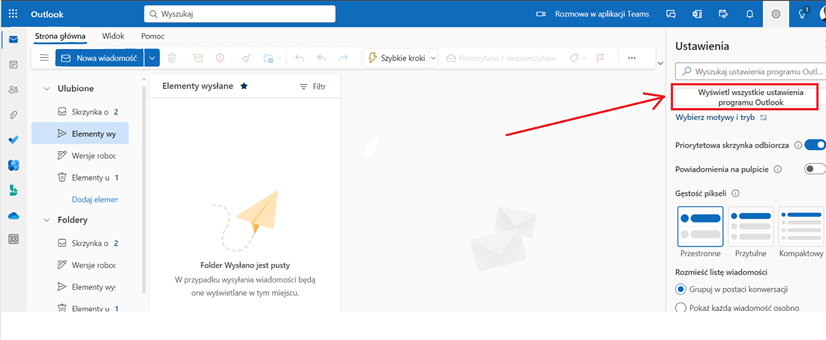
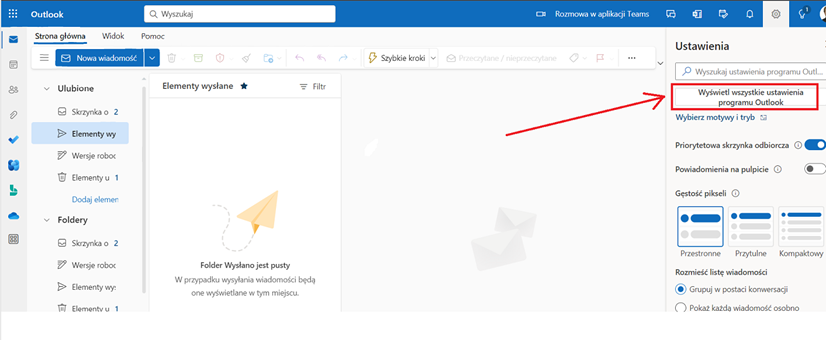
3. Click “View all Outlook settings”.
4. Go to Calendar, then select Shared calendars. Under Publish a calendar, choose the calendar you want to share and set the permission to Can view all details. Click Publish to generate the links, then copy the link ending in .ics by right-clicking it.
5. Transfer the copied link to your phone. For example, paste it into a new email message and save it as a draft. Then open Outlook in your phone’s browser and copy the link.
6. Open the Calendar app on your iPhone. Tap Calendars, then Add Calendar and select Add Subscribed Calendar. Paste the link and tap Add to confirm.
7. Check your calendar on your phone to make sure it’s displaying correctly.

ANDROID
Method 1
Open Settings on your Android phone.
Select General in Settings.
Select Accounts under the General tab.
Tap Auto-sync accounts.
If prompted to enable automatic synchronisation, tap TURN ON.
Open the Outlook app and sign in to your account.
Tap the Office icon in Outlook.
Tap the Settings gear icon below.
Select your account.
Tap Sync contacts and/or Sync calendar.
Check your calendar on your phone to make sure it’s synchronised.
Source: Sfopera – How to Sync Your Outlook Contacts and Calendar on Android
Method 2
Open Widgets on your Android phone.
Select Outlook.
Choose Calendar, then tap Add widget.
Tap Add to confirm.
Note: The calendar only displays meetings from Microsoft Teams.